Keycloak
This guide explains how to integrate Hrida.ai with Keycloak for OIDC Single Sign-On (SSO).
1. Environment Preparation and Port Change
Hrida.ai Server Port
- Default Port:
8080
Keycloak Port Conflict Issue
Keycloak also uses port 8080 by default, which causes a conflict. Change the Keycloak port to 9090.
bin/kc.sh start-dev --http-port=90902. Create a Keycloak Realm
- Open your browser and go to
http://localhost:9090. Create an administrator account. - Log in to the admin console at
http://localhost:9090/admin. - From the realm dropdown at the top, click Add realm.
- Enter
hridaaias the Realm name and click Create.
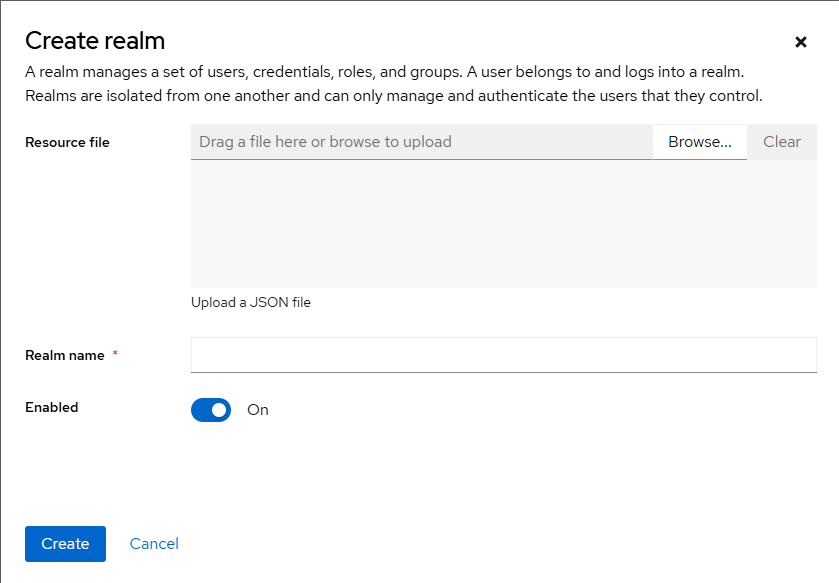
3. Create an OpenID Connect Client
Make sure you have selected the hridaai realm. The default is master.
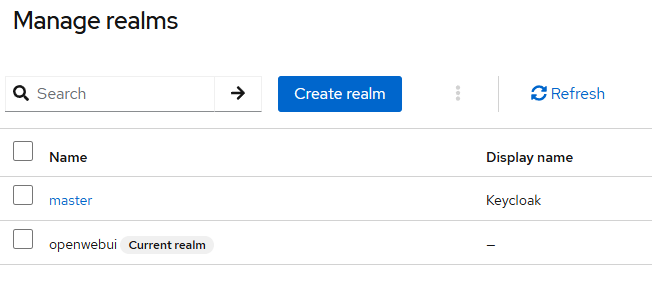
- Ensure the
hridaairealm you just created is selected. - In the left menu, click Clients → Create client.
- Set Client ID to
hrida-ai. - Keep Client protocol as
openid-connect. - Set Access Type to
confidentialand click Save.
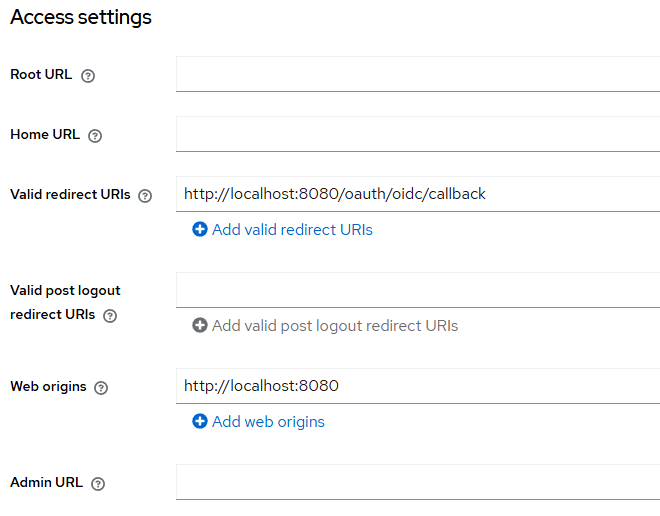
4. Enable Client Authentication and Get Credentials
By default, Keycloak 26.x sets Client Authentication to "None", so it needs to be configured manually.
- Go to Clients → hrida-ai → Settings.
- Check the Client Authenticator dropdown.
- Change "None" to Client ID and secret and click Save.
- Click the Advanced tab.
- In the Client authentication section, click Reveal secret and copy the secret.
- Paste this secret into the
OAUTH_CLIENT_SECRETvariable in your.envfile.
5. Create a Test User
- In the left menu, go to Users → Add user.
- Fill in the Username, Email, etc., and click Save.
- Click on the newly created user, then go to the Credentials tab.
- Enter a new password, uncheck Temporary, and click Set Password.
- Example: Username
testuser, PasswordTest1234!
- Example: Username
6. Configure Hrida.ai .env
Add or modify the following variables in your .env file.
# Enable OAuth2/OIDC Login
ENABLE_OAUTH_SIGNUP=true

# Keycloak Client Information
OAUTH_CLIENT_ID=hrida-ai
OAUTH_CLIENT_SECRET=<YOUR_COPIED_SECRET>

# OIDC Discovery Document URL
OPENID_PROVIDER_URL=http://localhost:9090/realms/hridaai/.well-known/openid-configuration

# (Optional) SSO Button Label
OAUTH_PROVIDER_NAME=Keycloak

# (Optional) OAuth Callback URL
OPENID_REDIRECT_URI=http://localhost:8080/oauth/oidc/callback
Restart the Hrida.ai server after modifying the .env file.
7. HTTP vs. HTTPS
- HTTP (Development/Test):
- Scheme:
http:// - Example:
http://localhost:9090
- Scheme:
- HTTPS (Production Recommended):
- Requires Keycloak TLS setup or a reverse proxy with SSL termination.
bin/kc.sh start --https-port=9090 \
  --https-key-store=keystore.jks \
  --https-key-store-password=<password>
8. Test the Integration
- Go to
http://localhost:8080. You should see a "Continue with Keycloak" button. - Click the button. You should be redirected to the Keycloak login page.
- Log in with
testuser/Test1234!. You should be successfully redirected back to Hrida.ai.
9. Configure Keycloak Group Mapping
9.1. Overview
By default, Keycloak clients do not include group information in tokens. Follow these steps to pass group information.
9.2. Locate Mapper Creation
-
Go to the Keycloak Admin Console:
http://localhost:9090/admin. -
Select the
hridaairealm. -
Navigate to Clients and select the
hrida-aiclient. -
Go to the Client scopes tab.
-
Select the scope that will contain the group information (e.g.,
profileorhrida-ai-dedicated). -
In the selected scope's details, go to the Mappers tab.
9.3. Create Mapper
Click Create or Add builtin to start creating a new mapper.
9.4. Mapper Settings
Configure the mapper with the appropriate settings to include group membership.
9.5. Save and Apply
- Save the mapper configuration.
- Restart the Hrida.ai server to apply the changes.
9.6. Configure Hrida.ai Environment Variables
Add or modify these variables in your .env file:
# Enable group synchronization
ENABLE_OAUTH_GROUP_MANAGEMENT=true

# (Optional) Enable Just-In-Time group creation
ENABLE_OAUTH_GROUP_CREATION=true

# The claim key for groups in the token
OAUTH_GROUP_CLAIM=groups